Updating LSI 9400-16i Firmware
A complete guide to updating the firmware on Broadcom LSI 9400-16i HBA cards.
Blog Post Overview
Updating LSI 9400-16i Firmware and UEFI BIOS on Linux
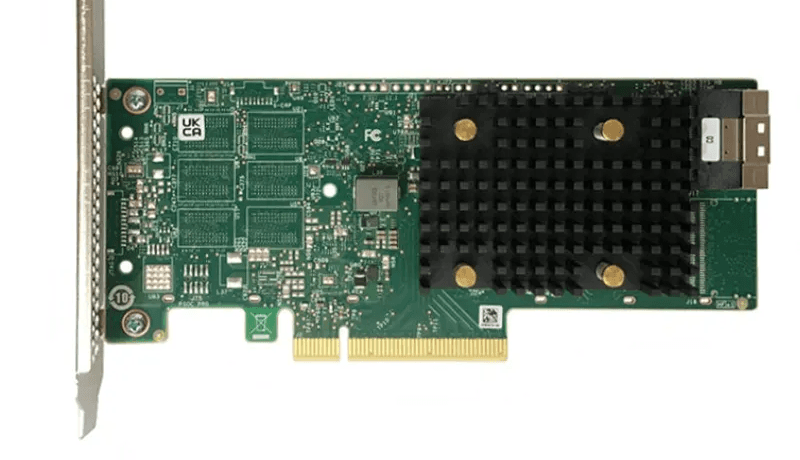
The LSI 9400-16i HBA is a significant upgrade from the 9305-16i, offering comparable performance while consuming considerably less power. This guide will walk you through the complete firmware and UEFI BIOS update process on Linux.
Why Update?
Keeping your HBA firmware up-to-date ensures:
- Improved stability and compatibility
- Better drive support (especially newer models)
- Performance optimizations and bug fixes
- Security patches
What You'll Need
1. Firmware Package
Download the latest firmware from Broadcom:
2. STORCLI Flashing Software
Download the STORCLI utility (required for flashing):
3. USB Flash Drive
Critical: The USB drive must be formatted with FAT32 file system, as the EFI shell cannot read other filesystems.
# Replace sdX with your USB drive identifier (check with lsblk)
mkfs.fat -F32 /dev/sdX1
⚠️ Warning: This will erase all data on the USB drive. Back up any important files first!
Step-by-Step Update Process
1. Prepare the USB Drive
Extract both packages and copy the necessary files to your USB drive:
# Extract the firmware package
unzip 9400_16i_Pkg_P24_SAS_SATA_NVMe_FW_BIOS_UEFI.zip

# Extract the STORCLI utility
unzip STORCLI_SAS3.5_P24.zip

# Mount your FAT32-formatted USB drive
sudo mount /dev/sdX1 /mnt/usb

# Copy STORCLI EFI executable
sudo cp STORCLI_SAS3.5_P24/univ_viva_cli_rel/Unified_storcli_all_os/EFI/storcli.efi /mnt/usb/

# Copy the x64 UEFI BIOS file
sudo cp 9400_16i_Pkg_P24_SAS_SATA_NVMe_FW_BIOS_UEFI/UEFI_BSD_HII_SAS3.5_IT_X64/mpt35sas_x64.rom /mnt/usb/

# Copy your chosen firmware profile (see note below)
# For SAS/SATA only:
sudo cp 9400_16i_Pkg_P24_SAS_SATA_NVMe_FW_BIOS_UEFI/Firmware/HBA_9400-16i_SAS_SATA_Profile.bin /mnt/usb/

# OR for SAS/SATA/NVMe:
sudo cp 9400_16i_Pkg_P24_SAS_SATA_NVMe_FW_BIOS_UEFI/Firmware/HBA_9400-16i_Mixed_Profile.bin /mnt/usb/

sudo umount /mnt/usb
Choosing the Right Firmware Profile
Critical Decision: Select the appropriate firmware profile for your use case:
-
HBA_9400-16i_SAS_SATA_Profile.bin
- For SAS and SATA drives only
- Recommended if you don't need NVMe (I've read somewhere that is offers better performance when you're not using NVME drives)
-
HBA_9400-16i_Mixed_Profile.bin (SAS/SATA/NVMe)
- Required for NVMe drive support
- Slightly higher resource usage
⚠️ Important:
- Make absolutely sure you're using the x64 versions of both firmware and BIOS files
- Using the wrong architecture (ARM) will fail or potentially brick your controller
2. Boot into EFI Shell
- Plug the USB drive into your server
- Reboot your system
- Enter your BIOS/UEFI settings (common keys: F2, F10, F12, or Del - check during POST)
- Look for an option to boot into EFI Shell or UEFI Shell
- Select it and boot
Sometimes there's no direct way to enter the EFI shell from BIOS. I recommend keeping a bootable USB with something like Arch Linux around, as it typically includes both a memory tester (often useful) and EFI shell access built in.
3. Navigate to Your USB Drive
Once in the EFI Shell, you'll see a command prompt. Your USB drive will be mounted as a filesystem (fs0:, fs1:, etc.).
# List all available filesystems
map

# Try fs0: first (most common for USB drives)
fs0:

# List files to verify you're on the correct drive
ls

# If you don't see storcli.efi and your firmware files, try other drives:
fs1:
ls

# Continue until you find the correct filesystem
fs2:
ls
Tip: The map command shows all available storage devices and their assigned filesystem labels.
4. Flash the UEFI BIOS
Important: Always update the UEFI BIOS first, then the firmware.
# Update UEFI BIOS for controller 0
storcli.efi /c0 download efibios file=mpt35sas_x64.rom
Understanding the command:
/c0refers to controller 0 (your first LSI controller)- If you have multiple LSI controllers, use
/c1,/c2, etc. - To list all controllers, run:
storcli.efi show
The flashing process will take a short while. Do not interrupt it or power off the system.
5. Flash the Firmware
After the UEFI BIOS update completes successfully, flash your chosen firmware profile:
# For SAS/SATA only setup:
storcli.efi /c0 download file=HBA_9400-16i_SAS_SATA_Profile.bin

# OR for SAS/SATA/NVMe setup:
storcli.efi /c0 download file=HBA_9400-16i_Mixed_Profile.bin
Note: Use only ONE of the above commands based on your chosen profile. The firmware update will also take a short while.
6. Verify and Reboot
After both updates complete successfully:
# Verify the firmware version
storcli.efi /c0 show all

# Look for "FW Package Build" and "BIOS Version" in the output
Once verified, exit the EFI shell and reboot:
exit
# Or simply press the power button
Verification After Reboot
Once your system boots back into Linux, verify the update:
# Install storcli on your system if not already present
sudo ./storcli64 /c0 show all | grep -E "FW Package Build|BIOS Version"

# Or check dmesg for LSI controller information
dmesg | grep -i mpt3sas
Comments (0)
Leave a comment
Loading comments...